The gap between buying something and logging it is where expense tracking dies. Open phone, find app, wait for it to load, tap plus. Four steps is three too many when you are holding a bag of vegetables.
The home screen widget removes most of them.
What it shows
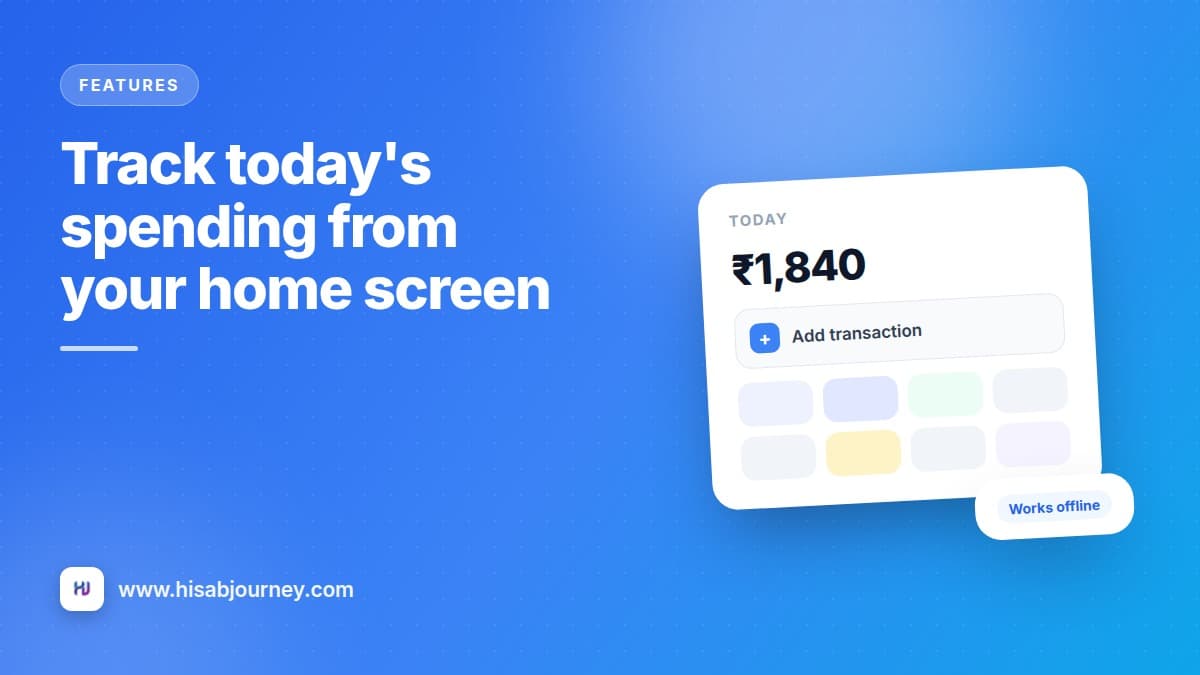
Today's total spending, right on your home screen, updated as you log.
That number is quietly powerful. Seeing ₹1,840 at four in the afternoon changes what you do at seven in a way that a monthly report never will, because it arrives while you can still act on it.
Beside it is a green +, a one-tap shortcut into adding a transaction, so the loop from spending money to recording it closes in seconds.
The three widgets
| Widget | Size | What you get |
|---|---|---|
| HJ Quick Add | 2x1 | The app mark, today's total and the add button. A compact tile for a busy home screen |
| HJ Expense | 4x1 | A full width strip labelled Today's Expense, with the total and the add button |
| HJ Expense+ | 4x2 | The same, plus shortcuts for Food, Transport, Shopping and Other, so you can log straight into a category |
HJ Expense+ is the one to choose if you are actively building the habit. Those four shortcuts remove the last step between buying something and having it categorised, which is exactly the step people skip when they are in a hurry.

Adding it
- Long-press an empty spot on your home screen On Android, tap Widgets. On iPhone, tap the + button that appears at the top of the screen.
- Find Hisab Journey in the list Search by name if your widget list is long.
- Pick the widget you want HJ Quick Add, HJ Expense or HJ Expense+.
- Drop it where your thumb lands Not on the third screen you never visit. Put it where you will actually see it.
If you are not sure which to start with, take HJ Expense. It reads at a glance without eating a whole row, and you can swap it later by removing the widget and adding a different one.
Put it on your main screen, not a spare one
A widget you have to swipe to see is a widget you stop seeing. Place it on the screen your phone opens to, ideally in the bottom half where your thumb already lives.
It works with no signal
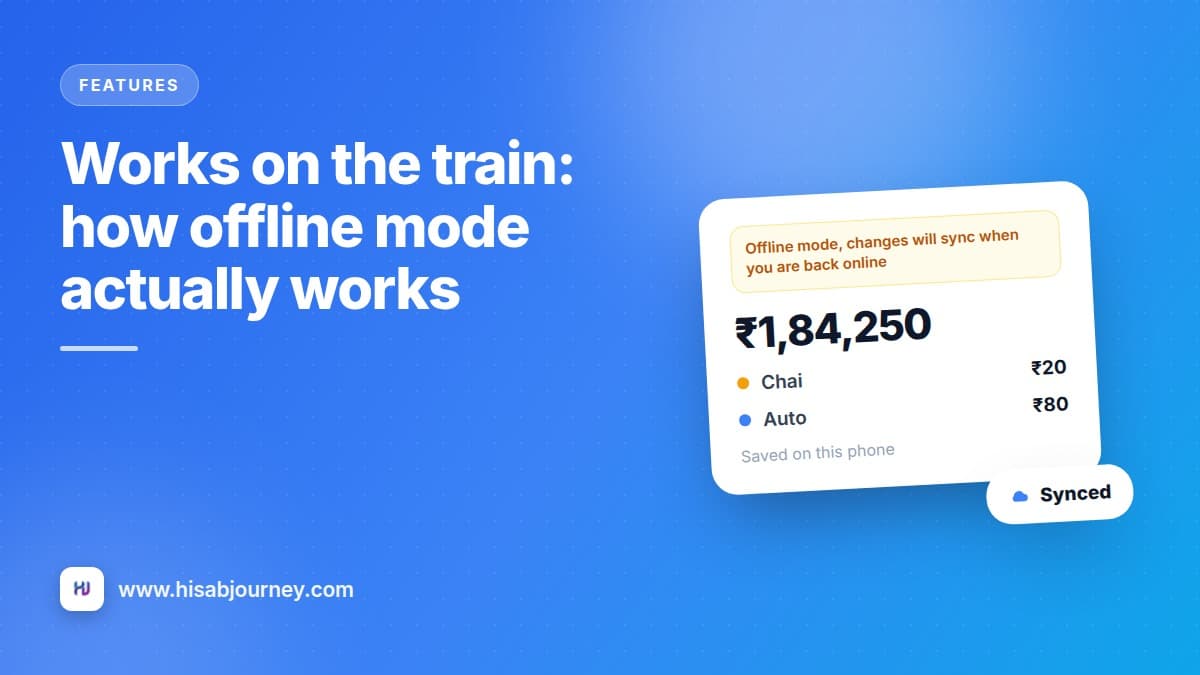
The widget reads today's total from the data already on your phone, so the number is correct in a basement car park, on a train, or on a flight.
Tap it, add the transaction, done. The entry saves locally and syncs by itself when you are back online, exactly like anything else you enter offline. How offline mode works covers the full picture.
Pair it with the daily reminder
The widget catches you in the moment. The daily reminder catches whatever slipped through.
Turn it on from More and then Settings by switching on Daily reminder, and allow notifications when your phone asks. In the evening you get a nudge, you open the app, and you add the two things you missed.
Widget for the moment, reminder for the day. Between them, very little escapes.
Why today's number is the right number
Monthly budgets are useful for planning and useless for behaviour. Nobody has ever put a packet of biscuits back because of a figure they last looked at three weeks ago.
Today's number is different. It is small enough to feel real, it resets every morning, and it is on your home screen whether you asked for it or not. After a week, you start to know what a normal day looks like for you, and the days that are not normal become obvious while there is still time to do something about them.
Questions about the widget
Frequently asked questions
What are the three widgets called?
HJ Quick Add at 2x1, HJ Expense at 4x1, and HJ Expense+ at 4x2. All three show today's total spending and carry an add button. Only HJ Expense+ has the Food, Transport, Shopping and Other shortcuts.
Does the widget work offline?
Yes. It reads from the data on your phone, so today's total is correct with no connection, and anything you add syncs when you are back online.
How quickly does it update?
It updates as you log, so the number reflects the transactions you have entered today.
Can I have more than one widget on my home screen?
You add them the normal way for your phone, so you can place the one you want where you want it and change it later by removing and adding another.
What does tapping the widget do?
The add button opens a new transaction straight away. On HJ Expense+ the category shortcuts do the same with the category already chosen.
What to do next
Long-press your home screen, add HJ Expense or HJ Expense+, and put it where your thumb naturally sits. Then log the next thing you buy from the widget rather than the app and notice how much less friction there is.
If you have not set up your accounts and categories yet, do that first in your first ten minutes, because a fast add is only fast when the categories are already there.