You hand your phone to a colleague to show them a photo. Or your child is playing a game on it. Or it is sitting face up on a restaurant table while you go to wash your hands.
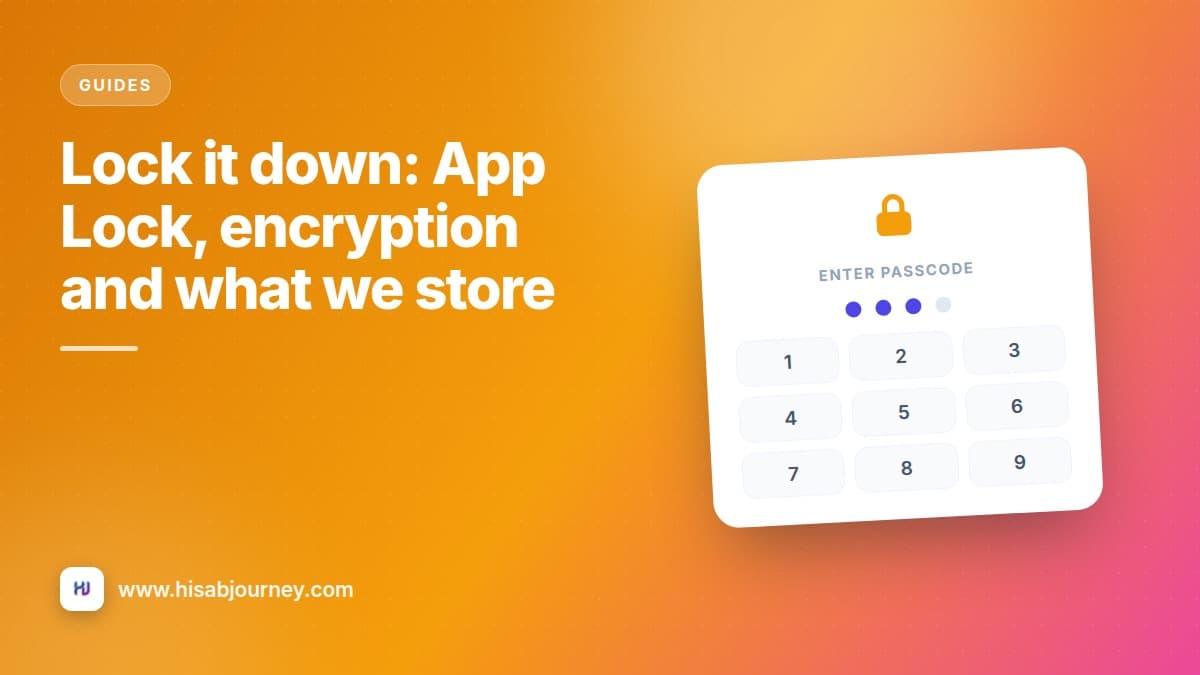
Your phone lock covers the obvious case. App Lock covers the rest, and it takes about a minute to set up.
Turning on App Lock
- Open the setting Go to More, then Settings, then App Lock.
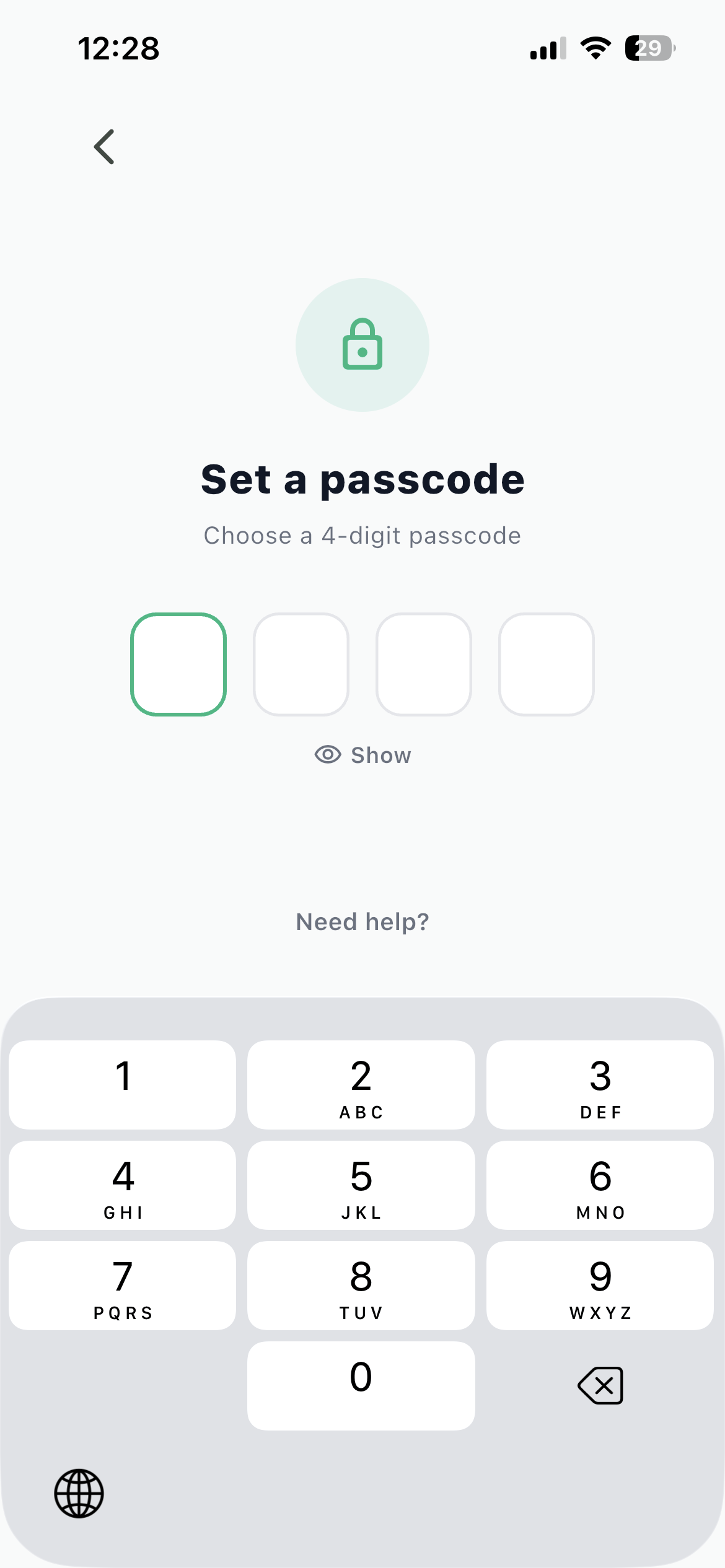
- Set a passcode The screen asks you to Choose a 4-digit passcode. Pick something that is not your phone unlock code and not your ATM PIN. Different lock, different code. Show reveals what you are typing if you want to check it.
- Confirm passcode Enter it a second time and you are done.
From then on the app asks for your passcode every time you open it.
If you forget the passcode
This is the part people worry about, and it has a clean answer. You are never locked out of your own money.
On the lock screen, tap Login with password and verify with your account password. If you cannot remember that either, use Forgot password? on that screen to email yourself a reset link.
Get the passcode wrong too many times and the app pauses you temporarily with a message that there have been too many attempts. That delay exists to make guessing pointless, and it clears on its own.
Why your account password is the backup
Anyone can try four digits. Almost nobody has your email inbox. Recovery through your account password means a stranger with your unlocked phone still cannot get past the lock screen, while you always can.
Turning it off
Go to More, then Settings, then App Lock, toggle it off, and confirm at the Disable App Lock? prompt.
Worth doing if you have set up a shared family phone and the passcode is causing more friction than it prevents. For a personal phone, leave it on.
Your password, and adding one to a Google or Apple sign in
To change your password, go to More, then Settings, then Change password. Enter your current password, then the new one twice, and save.
The same screen is how you set a password if you signed up with Google or Apple and never had one. That is worth doing. It means you can sign in either way, and it gives you the account password that App Lock recovery uses.
Do this while you are set up already
If you signed in with Google, spend the extra minute now to set an email password too. The day you need it is never a convenient day.
Encryption, in plain English
Your sensitive data is protected with an encryption key tied to your account. The app sets this up for you, so there is nothing to configure and nothing to remember.
If you ever need to see the key itself, you can view it from the security setup screen after confirming your password. Most people never will, and that is fine. The important part is that the protection is on by default rather than something you had to switch on.
What the app does not do
Sometimes the security story is best told by what is absent.
It does not connect to your bank. There is no netbanking login, no account aggregator, no read access to your balances. Every transaction in the app is one you entered or one you imported from a file you chose to hand over.
It does not read your SMS. Bank alerts on your phone stay between you and your phone.
It asks for very little. Camera when you first take a photo of a bill, and notification permission on newer Android and iOS. No contacts permission, no location.
That last point is the one worth internalising. An app that never had access to something cannot leak it.
Deleting your account, if it comes to that
You should know the exit before you need it.
Go to More, then Settings, then Delete account. You enter your password and type DELETE to confirm. It is permanent and it removes your data. The double confirmation exists precisely because there is no undo.
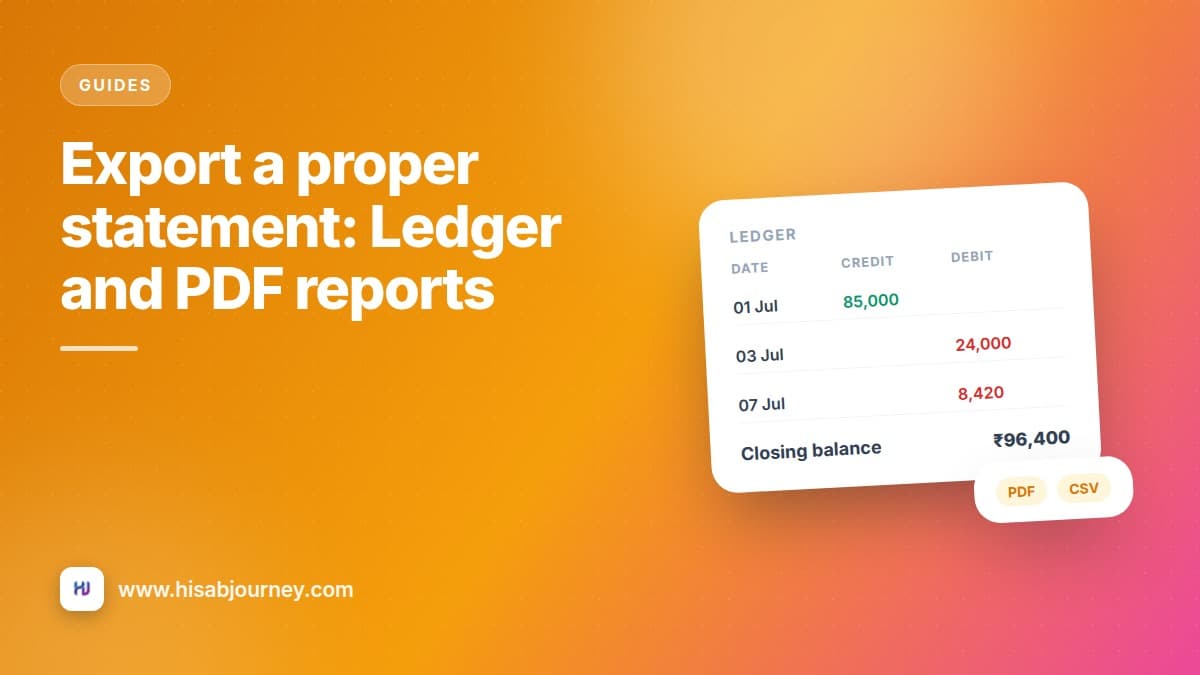
If you just want your records out first, export each account from the Ledger as CSV or PDF before you delete. Export a proper statement explains how.
A five minute security setup
Do these in one sitting and you are done.
Turn on App Lock with a code you do not use anywhere else. Make sure you have an email password set, even if you sign in with Google. Turn on your phone's own screen lock, since App Lock sits on top of it rather than replacing it. And use the eye chip on the home screen or the Accounts screen to hide balances when you are somewhere public.
Questions about security
Frequently asked questions
I forgot my app passcode. What now?
On the lock screen tap Login with password and verify with your account password. If you have forgotten that too, use Forgot password? on the same screen to email yourself a reset link.
I signed in with Google. Can I also use a password?
Yes. Go to Settings and then Change password to set one, and then you can sign in either way.
Does the app read my SMS or bank messages?
No. Every transaction in the app is one you entered yourself or imported from a file you chose.
What happens if I get the passcode wrong several times?
The app locks you out temporarily and tells you there have been too many attempts. Wait, then use Login with password if you still cannot remember it.
Is deleting my account reversible?
No. You confirm with your password and by typing DELETE, and it permanently removes your data. Export what you need from the Ledger first.
What to do next
Open More, then Settings, then App Lock, and set a passcode now. It is the sixty seconds in this whole post that actually changes anything.
Then, if you signed up with Google or Apple, set an email password from the same Settings screen. New to the app? Your first ten minutes covers this alongside the rest of the setup.